Ever found yourself staring at your Salesforce Pipeline Inspection dashboard, scratching your head? You know a deal moved, but it’s not showing up where you expect it to. Or perhaps it appears under “This Week” but vanishes when you select “2 Weeks Ago”?
If that sounds familiar, you’re not alone. Pipeline Inspection is a powerful tool for sales leaders and reps, offering dynamic insights into pipeline health. But its “Changes Since” filter, particularly how it calculates “Moved In” and “Moved Out” opportunities, can sometimes feel like a magic trick. Today, we’re pulling back the curtain on that magic, using a real-world scenario to explain exactly what’s going on.
First, A Quick Recap: The Core Concepts
Before we dive into the puzzle, let’s ensure we’re on the same page with two fundamental Salesforce concepts:
Close Date: This is the anticipated (for open deals) or actual (for closed deals) date by which an opportunity is expected to be won or lost. It’s the heartbeat of your sales forecast.
Pipeline Inspection’s “Changes Since” Filter: This ingenious filter shows you how your opportunities have evolved from a specific point in time up to the present. It tracks changes to amounts, stages, forecast categories, and critically for our discussion: opportunities that have “Moved In” or “Moved Out” of your chosen forecast period.
The Curious Case of the Elusive Opportunity
Let’s set the stage with a very specific example, straight from a recent conversation:
Imagine it’s Sunday, June 15, 2025. You’re viewing your Pipeline Inspection dashboard, focused on the “This Quarter” (Q2: April 1 — June 30, 2025) forecast period.
You have an Opportunity with this history:
Original Close Date: July 4, 2025 (initially in Q3)
Change 1: On June 4, 2025, you moved its Close Date from July 4, 2025 to June 30, 2025. (This moved the opportunity INTO “This Quarter”)
Change 2: On June 9, 2025, you moved its Close Date from June 30, 2025 to August 30, 2025. (This moved the opportunity OUT of “This Quarter”)
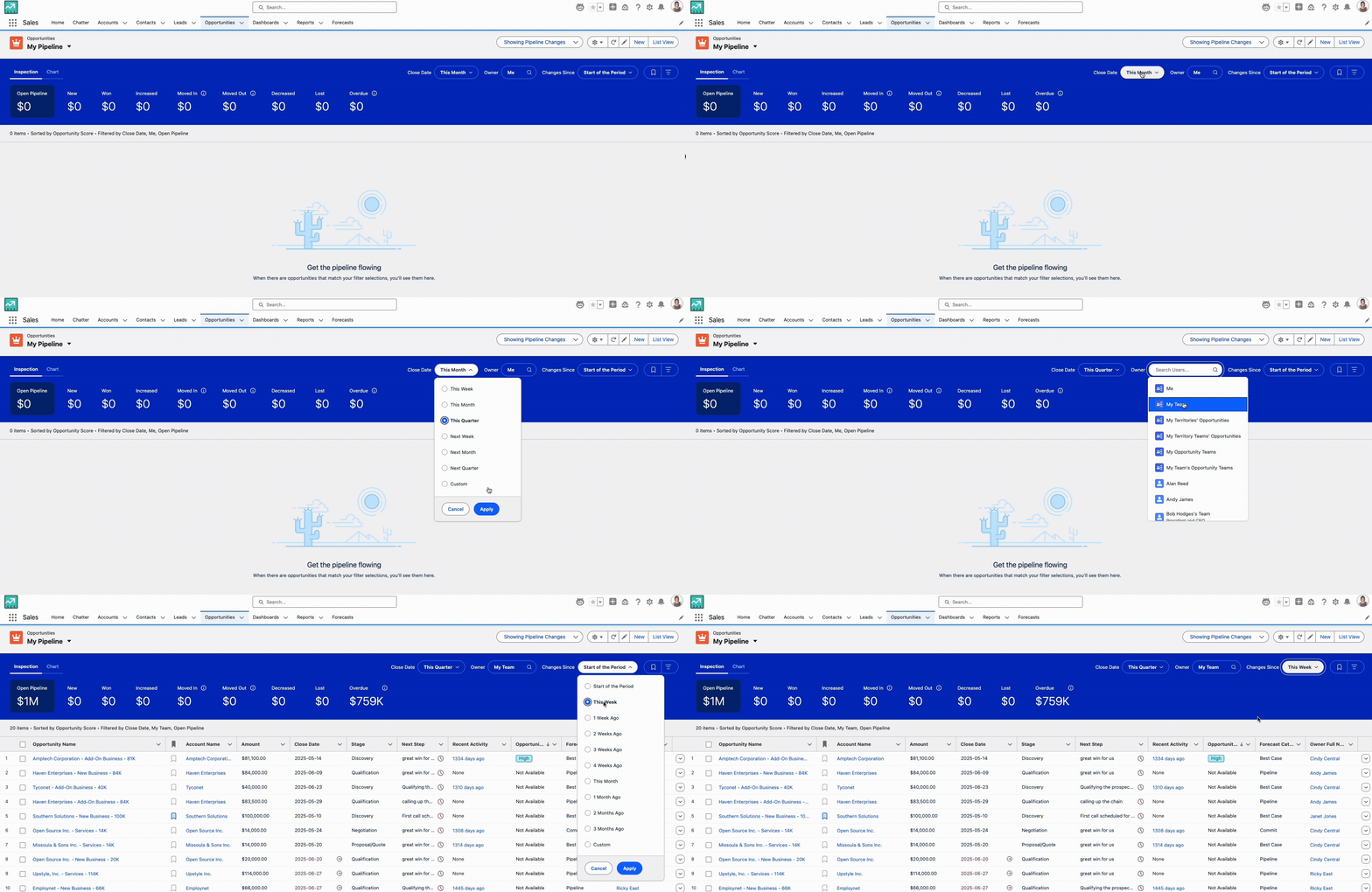
Now for the baffling part: You observe that this opportunity shows up as “Moved Out” when you select ‘Changes Since: This Week’, but it does NOT show up when you select ‘Changes Since: 2 Weeks Ago’.
Why the inconsistency? Let’s unpack it.
Dissecting the Filters: The “Starting Point” is Everything
The key to understanding this lies in how Pipeline Inspection defines the start of each “Changes Since” window, and how it uses that starting point to determine “Moved In” or “Moved Out” status relative to your selected forecast period.
Filter 1: ‘Changes Since: This Week’
What it means: All changes that happened since the very beginning of the current calendar week.
Our Start Time (for Sunday, June 15): Monday, June 9, 2025, 12:00:00 AM EDT.
**Analysis:
**– At the start of this filter (June 9, 12 AM EDT): Our opportunity’s Close Date was June 30, 2025. This date falls inside “This Quarter” (April 1 — June 30).
– During this filter’s window (on June 9): The Close Date was changed from June 30, 2025, to August 30, 2025. This new date falls outside “This Quarter”.
– Result: The opportunity was inside “This Quarter” at the start of ‘This Week’ and then moved outside “This Quarter” during ‘This Week’. This perfectly fits the “Moved Out” criteria.
– Verdict: It WILL show up as “Moved Out” in ‘This Week’. (Matches your observation!)
Filter 2: ‘Changes Since: 2 Weeks Ago’
What it means: All changes that happened since exactly two weeks prior to the current moment.
Our Start Time (for Sunday, June 15, 5:53:15 PM EDT): Sunday, June 1, 2025, 5:53:15 PM EDT.
**Analysis:
**– At the start of this filter (June 1, 5:53:15 PM EDT): Our opportunity’s Close Date was July 4, 2025 (because the change to June 30 hadn’t happened yet, as it occurred on June 4).
– Is July 4, 2025 within “This Quarter” (April 1 — June 30)? NO. (It’s in Q3).
– Result: For an opportunity to be “Moved Out” by this filter, it needed to be inside “This Quarter” on June 1. Since it was already outside “This Quarter” at that starting point, it cannot be counted as having “moved out” from that specific perspective. Even though it moved in and then out within the 2-week window, its starting status for this particular filter disqualifies it from the “Moved Out” category.
– Verdict: It will NOT show up as “Moved Out” in ‘2 Weeks Ago’. (Matches your observation!)
The Takeaway: It’s All About the Baseline
The critical lesson here is that Salesforce Pipeline Inspection’s “Moved In” and “Moved Out” metrics are calculated by comparing the opportunity’s status at the exact beginning of your chosen ‘Changes Since’ filter to its current status, all relative to your selected Forecast Period.
It’s not just about when a change happened, but what the opportunity’s state was at the baseline of the comparison. This allows sales managers to accurately understand pipeline dynamics from different historical vantage points.
So, the next time you’re reviewing your pipeline, remember the power of that “Changes Since” filter and how its starting point dictates the story it tells.
What are your pipeline mysteries?
Have you encountered similar head-scratching moments in Salesforce Pipeline Inspection? Or perhaps you have other filters or metrics you’d like us to demystify? Share your thoughts, questions, and experiences in the comments below! Let’s build a clearer understanding of our sales data together.